Plans and billing
Your project's plan decides which features it can use, such as custom domains and database backups, and how far its server and database can grow. You pick a plan when you create a project, and you can change it later. Every project you own is billed to the card and billing details on your Serverpod Cloud account.
Choose a plan
Serverpod Cloud has two standard plans, Starter and Growth. Starter fits an app before launch or a side project. Growth fits production apps, and adds features Starter doesn't include, such as custom domains, database backups, future calls, and team members. The pricing page lists what each plan includes and costs.
For needs beyond Growth, Serverpod also offers an Enterprise plan, which you arrange with the Serverpod team. The pricing page lists what it includes.
To see which plan your project is on, open its Settings in the Serverpod Cloud console. The Plan section shows the plan's name. From the terminal, run serverpod cloud project show in your project's directory and look at the Plan row.
Free trial
Your first Starter project includes a one-month free trial. You don't need a card or billing details until the trial ends.
Any other project, including every Growth project, needs a card and billing details when you create it. The New project page asks for whichever is missing.
To see when the trial ends, open the project's Settings. The Plan section shows the end date. Serverpod Cloud also emails you a reminder before it ends.
What happens when the trial ends depends on your account:
- Billing is set up: The project keeps running, and its monthly plan fee starts.
- Billing isn't set up: The project is suspended right away.
To keep the project running, set up billing before the trial ends. Until you do, the console shows a Set up billing banner at the top.
Set up billing
Your account needs a card to pay for your projects and billing details for your invoices. Your billing details are your billing address, plus your company name if you're billed as a business. Without them, an invoice can't be issued, and the project is suspended.
You need both to:
- Keep a project running after its free trial
- Change a project's plan
- Create a project without a free trial
Projects you were invited to are billed to their owner, so they don't need your card or billing details.
To set up billing:
-
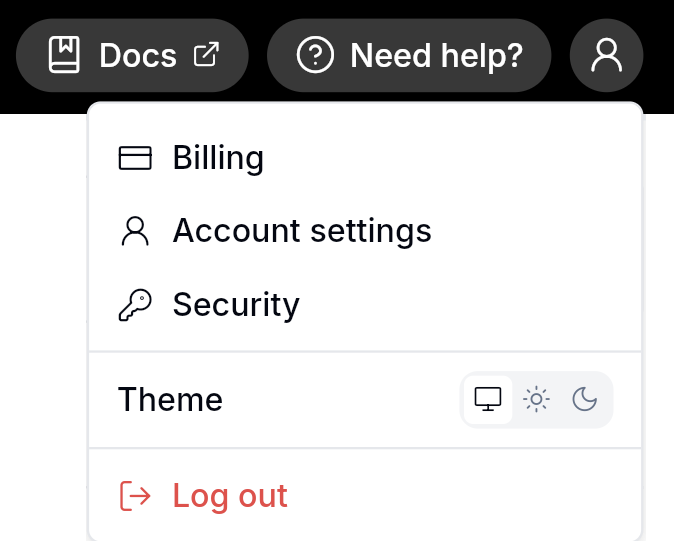
In the Serverpod Cloud console, select the person icon in the top bar, then Billing. The Set up billing buttons open the same page.
-
Add your card under Payment methods.
-
Fill in your billing address under Billing info. If you're billed as a business, select Are you a business? and add your company name. VAT information is optional.
-
Under Billing emails, add anyone else who should get billing messages, such as trial reminders and failed payments.
-
Select Save. Your billing info and billing emails are saved only when you do.
Once your account has a card and billing details, the Set up billing banner and buttons go away.
Change your project's plan
You can move a project between Starter and Growth in either direction. The move changes which features the project can use and which monthly fee it pays.
Before you start
Make sure:
- You own the project: Only the project's owner can change its plan. For anyone else, the Upgrade plan or Edit plan button is dimmed, and hovering it explains who can change the plan.
- Billing is in order: Your account has billing details and no overdue payment.
Moving to Growth: If the project is on its free trial, the move ends the trial.
Moving to Starter: First remove what Starter doesn't include:
- Backups: Turn off the backup schedule with
serverpod cloud db schedule unset, then delete every snapshot, including scheduled ones. - Custom domains: Detach them.
- Team members: Remove each one with
serverpod cloud project user revokefollowed by their email. - Storages: Delete storages until two remain. Deleting a storage removes its files for good, so copy out anything you need first.
Change the plan
- In the Serverpod Cloud console, open your project's Settings. On Starter, select Upgrade plan in the Plan section. On Growth, select Edit plan.
- Under Project plan, choose the plan.
- Review Compute and Database, because choosing a plan resets both to that plan's defaults, which are one small podlet (a running copy of your server) and the small database size. On Starter, the podlet scales to zero. On Growth, it keeps running.
- Select Save. If your account has no card, the button reads Add card and upgrade, and the console asks for the card first.
The change can take up to a minute to apply. The Plan section then shows the new plan's name. If the project has been deployed, your server restarts with the new plan's settings.
If the console says "We couldn't confirm your plan change", refresh the page. If the Plan section still shows the old plan, check each point under Before you start. If you're moving to Starter, also check the Moving to Starter list.
View your invoices
Your invoices are kept in your billing portal, a separate page that opens in a new tab. To open it, go to the Billing page of the Serverpod Cloud console and select View invoices.
Stop charges
A project's charges stop when you delete it, because deleting ends its plan right away. Moving the project to Starter doesn't stop them, since Starter has a monthly fee too. Fees are billed after the period they cover, so a last invoice still arrives for the time before the deletion.
Deleting a project removes its server, database, and stored files. It can't be undone, and the project ID can't be used again.
To delete a project, including a suspended one, open its Settings in the console and select Delete project. From the terminal, run project delete with the project ID:
serverpod cloud project delete my-app
Troubleshooting
What happens if a payment fails?
Serverpod Cloud charges your card for each invoice. When a payment fails, what happens next depends on the invoice:
- The first invoice on a project's plan: The project is suspended right away. This includes the first invoice after you change the project's plan, or after you switch your account between business and individual on Billing.
- Later invoices: You have 10 days to pay, counted from the day the payment first fails. Your billing emails get a message with the date the project will be suspended.
While a payment is overdue, the console shows Payment overdue at the top of every page. You can't create projects, add resources such as storages, or change a project's plan until it's paid. To pay, select Manage billing in that banner, then pay the overdue invoice in your billing portal.
Why is my project suspended?
A suspended project's server stops, and you can't deploy to it until it's reactivated. When a project is suspended for payment or billing setup, your billing emails get a message, and they get another when it's reactivated.
The project's page shows Project suspended with the reason and a button, and the project list marks it Suspended. From the terminal, serverpod cloud project show prints the reason in its Status row.
What to do depends on the button on the project's page:
| Button | Why the project is suspended | To reactivate it |
|---|---|---|
| Pay invoices | A payment is overdue | Select Pay invoices and pay the overdue invoices in your billing portal |
| Complete billing setup | Your account was missing a card or billing details when the free trial ended, or billing details when an invoice was due | Set up billing |
| Manage plan | The project's plan ended | Select Manage plan, then choose a plan on the project's Settings |
| Contact support | Serverpod Cloud support suspended it | Contact support from the Need help? menu in the console's top bar |
After you pay, complete billing setup, or choose a plan, the project is reactivated, and its server starts again with its last deployment.
Related
- Scale to zero: why Starter projects scale to zero when idle, and how to turn it on or off on Growth.
- Database backups: the backups that Growth includes.
- Storage: the storages each plan includes and their limits.