Creating endpoint methods
With Serverpod, calling an endpoint method in your server is as simple as calling a local method in your app. Let's create your first custom endpoint method and call it from the Flutter app. In this example, you will create a method that generates recipes from ingredients you may have in your fridge. Your server will talk with Google's Gemini API to make this magic happen. You will then call your endpoint method from the Flutter app and display the recipe.
On the server, you can do things you don't want to do in the app, like calling an API secured by a secret key or accessing a database. The server can also do things that are impossible in the app, like sending push notifications or emails.
Create a new project
Use the serverpod create command to create a new project. This command will generate a new project with a server, a client, and a Flutter app.
serverpod create magic_recipe
Always open the root directory of the project in your IDE. This will make it easier to navigate between the server and app packages. It will also prevent your analyzer from going out of sync when you generate code.
Add the Gemini API to your project
To generate our recipes, we will use Google's free Gemini API. To use it, you must create an API key on this page. It's free, but you have to sign in with your Google account. Add your key to the config/passwords.yaml file in your project's server package. Git ignores this file, so you can safely add your API key here.
# config/passwords.yaml
# This file is not included in the git repository. You can safely add your API key here.
# The API key is used to authenticate with the Gemini API.
development:
  geminiApiKey: '--- Your Gemini Api Key ---'
Next, we add the Dartantic AI package as a dependency to our server. This package provides a convenient interface for working with different AI providers, including Google's Gemini API.
$ cd magic_recipe_server
$ dart pub add dartantic_ai
Create a new endpoint
Create a new file in magic_recipe_server/lib/src/recipes/ called recipe_endpoint.dart. This is where you will define your endpoint and its methods. With Serverpod, you can choose any directory structure you want to use. E.g., you could also use src/endpoints/ if you want to go layer first or src/features/recipes/ if you have many features.
import 'package:dartantic_ai/dartantic_ai.dart';
import 'package:serverpod/serverpod.dart';

/// This is the endpoint that will be used to generate a recipe using the
/// Google Gemini API. It extends the Endpoint class and implements the
/// generateRecipe method.
class RecipeEndpoint extends Endpoint {
  /// Pass in a string containing the ingredients and get a recipe back.
  Future<String> generateRecipe(Session session, String ingredients) async {
    // Serverpod automatically loads your passwords.yaml file and makes the
    // passwords available in the session.passwords map.
    final geminiApiKey = session.passwords['geminiApiKey'];
    if (geminiApiKey == null) {
      throw Exception('Gemini API key not found');
    }

    // Configure the Dartantic AI agent for Gemini before sending the prompt.
    final agent = Agent.forProvider(
      GoogleProvider(apiKey: geminiApiKey),
      chatModelName: 'gemini-2.5-flash-lite',
    );

    // A prompt to generate a recipe, the user will provide a free text input
    // with the ingredients.
    final prompt =
        'Generate a recipe using the following ingredients: $ingredients. '
        'Always put the title of the recipe in the first line, followed by the '
        'instructions. The recipe should be easy to follow and include all '
        'necessary steps.';

    final response = await agent.send(prompt);

    final responseText = response.output;

    // Check if the response is empty.
    if (responseText.isEmpty) {
      throw Exception('No response from Gemini API');
    }

    return responseText;
  }
}
For methods to be recognized by Serverpod, they need to return a typed Future or Stream, where the type must be void bool, int, double, String, UuidValue, Duration, DateTime, ByteData, Uri, BigInt, or a serializable model. The first parameter must be a Session object. You can pass any serializable types as parameters, and even use List, Map, Set or Dart records as long as they are typed.
Now, you need to generate the code for your new endpoint. You do this by running serverpod generate in the server directory of your project:
$ cd magic_recipe_server
$ serverpod generate
serverpod generate will create bindings for the endpoint and register them in the server's generated/protocol.dart file. It will also generate the required client code so that you can call your new generateRecipe method from your app.
When writing server-side code, in most cases, you want it to be stateless. This means you avoid using global or static variables. Instead, think of each endpoint method as a function that does stuff in a sub-second timeframe and returns data or a status messages to your client. If you want to run more complex computations, you can return a Stream to yield progress updates as your task progresses.
Call the endpoint from the client
Now that you have created the endpoint, you can call it from the Flutter app. Do this in the magic_recipe_flutter/lib/main.dart file. Rename the _callHello method to _callGenerateRecipe and modify it to do the following (feel free to just copy and paste):
class MyHomePageState extends State<MyHomePage> {
/// Holds the last result or null if no result exists yet.
String? _resultMessage;
/// Holds the last error message that we've received from the server or null
/// if no error exists yet.
String? _errorMessage;
final _textEditingController = TextEditingController();
bool _loading = false;
void _callGenerateRecipe() async {
try {
// Reset the state.
setState(() {
_errorMessage = null;
_resultMessage = null;
_loading = true;
});
// Call our `generateRecipe` method on the server.
final result = await client.recipe.generateRecipe(
_textEditingController.text,
);
// Update the state with the recipe we got from the server.
setState(() {
_errorMessage = null;
_resultMessage = result;
_loading = false;
});
} catch (e) {
// If something goes wrong, set an error message.
setState(() {
_errorMessage = '$e';
_resultMessage = null;
_loading = false;
});
}
}
Widget build(BuildContext context) {
return Scaffold(
appBar: AppBar(
title: Text(widget.title),
),
body: Padding(
padding: const EdgeInsets.all(16),
child: Column(
children: [
Padding(
padding: const EdgeInsets.only(bottom: 16.0),
child: TextField(
controller: _textEditingController,
decoration: const InputDecoration(
hintText: 'Enter your ingredients',
),
),
),
Padding(
padding: const EdgeInsets.only(bottom: 16.0),
child: ElevatedButton(
onPressed: _loading ? null : _callGenerateRecipe,
child: _loading
? const Text('Loading...')
: const Text('Generate Recipe'),
),
),
Expanded(
child: SingleChildScrollView(
child: ResultDisplay(
resultMessage: _resultMessage,
errorMessage: _errorMessage,
),
),
),
],
),
),
);
}
}
Run the app
Before you start your server, ensure no other Serverpod server is running. Also, ensure that Docker containers from other Serverpod projects aren't running to avoid port conflicts. You can see and stop containers in the Docker Desktop app.
Let's try our new recipe app! First, start the server:
$ cd magic_recipe_server
$ docker compose up -d
$ dart bin/main.dart --apply-migrations
Now, you can start the Flutter app:
$ cd magic_recipe_flutter
$ flutter run -d chrome
This will start the Flutter app in your browser:
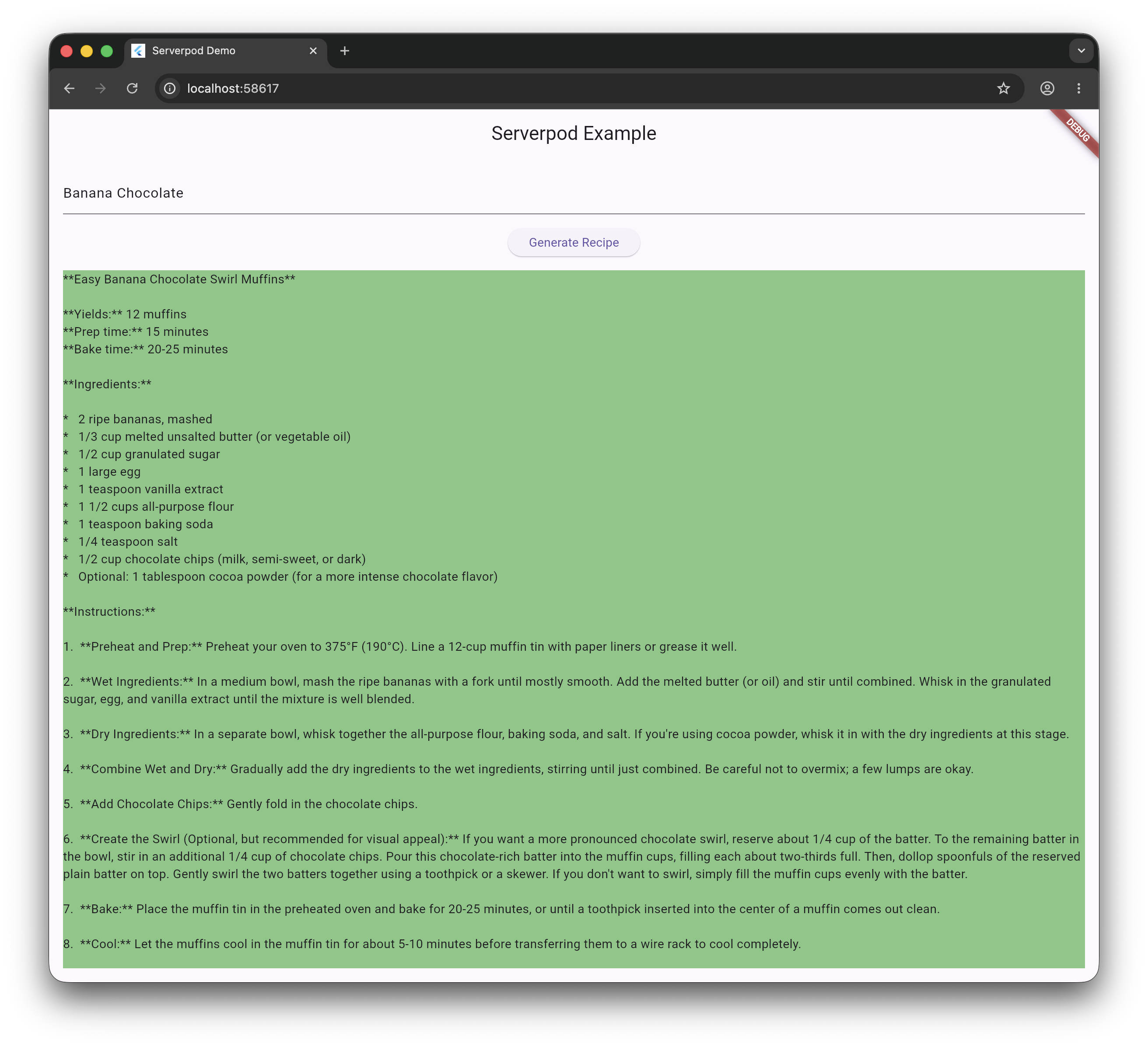
Try out the app by clicking the button to get a new recipe. The app will call the endpoint on the server and display the result in the app.
Next steps
For now, you are just returning a String to the client. In the next section, you will create a custom data model to return structured data. Serverpod makes it easy by handling all the serialization and deserialization for you.